Installing and commissioning the driver
This page takes you from adding the driver to an alarm that runs Crestron Home programming.
Have these ready. See What you need for the full list.
- A licence key: a 30-day trial or a full key from the Alarm Clock product page.
- If alarms will recall lighting scenes: the Crestron Home Web API enabled, and the processor rebooted since. The setting only takes effect after a reboot.
1. Add the driver
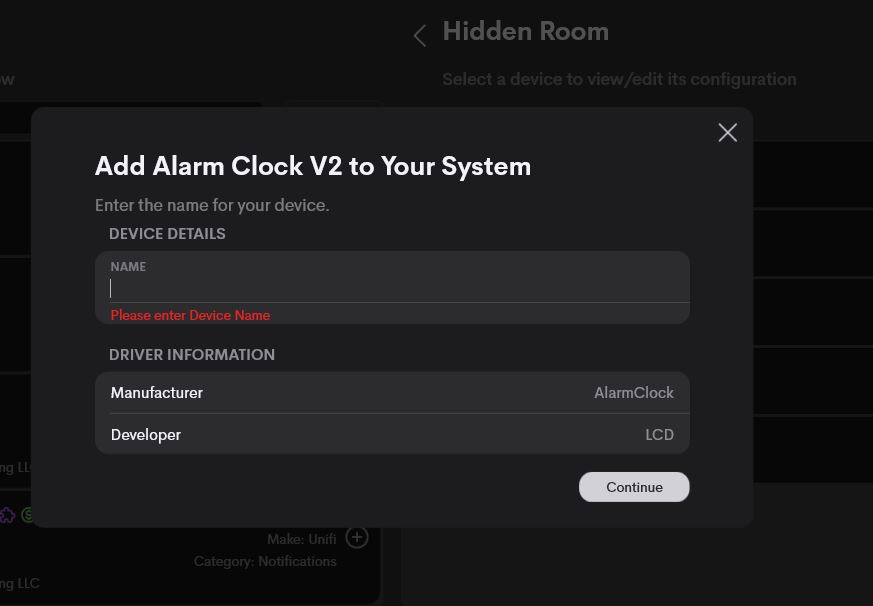
In the Crestron Home configurator, add a device to the room where the tile should appear. Search for alarm
and choose Alarm Clock V2 (Make: AlarmClock, Category: Date-Time, Developer: LCD).

The search also lists two other drivers called Alarm Clock: LCD's version 4 driver, and a different product from another developer. This page documents Alarm Clock V2.
Give the device a name and press Continue.
2. Enter the licence key
The setup wizard has two steps: Licence and Setup.
On the Licence step, paste the licence key into LICENCEKEY and press Next. Use Licence Store if you need a key or a trial first. The step also carries two links you'll use later:
- Alarms & Diagnostics opens the Alarm Clock app.
- Product & Licence App manages this processor's LCD products and licences.
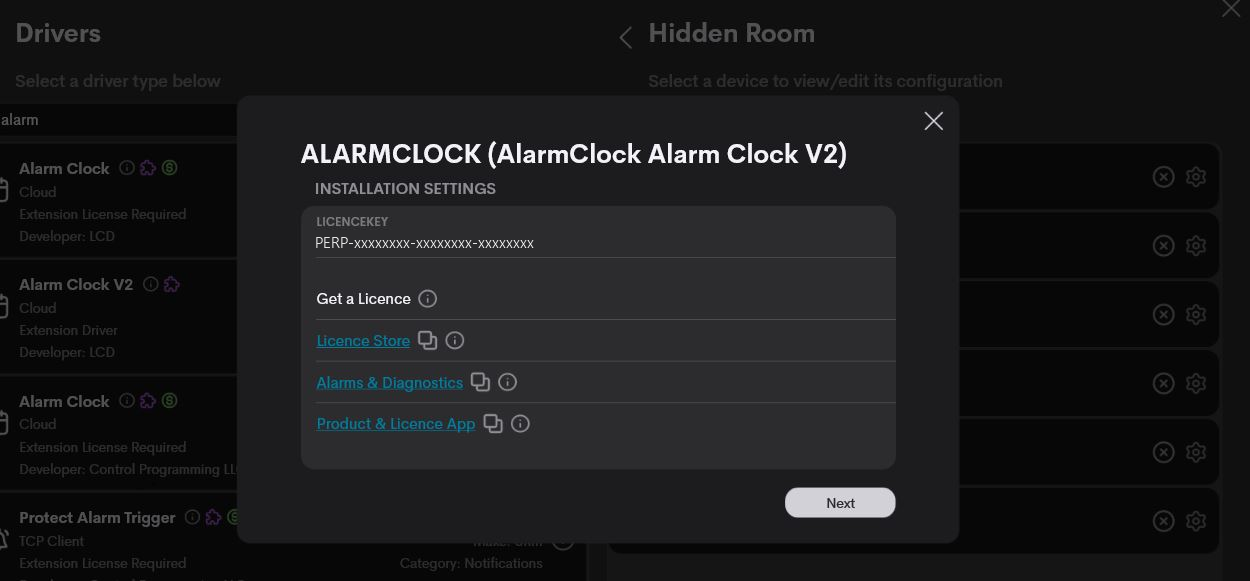
The Setup step has nothing to fill in. Press Finish.
An unlicensed driver still keeps time: alarms and timers go off and appear in the history, but they don't raise their events, recall their scene or play their chime. The panel says so. If the processor can't reach the licence server, alarms keep running.
3. Check the tile
The Alarm Clock tile appears on the Home page and in the driver's room, under the name you gave the device. It shows the next alarm if one is due within 24 hours, and the time otherwise.
To change where it appears, open Alarms & Diagnostics → Settings and tick or untick Show on the Home page and Show on the room page. The tile moves straight away.
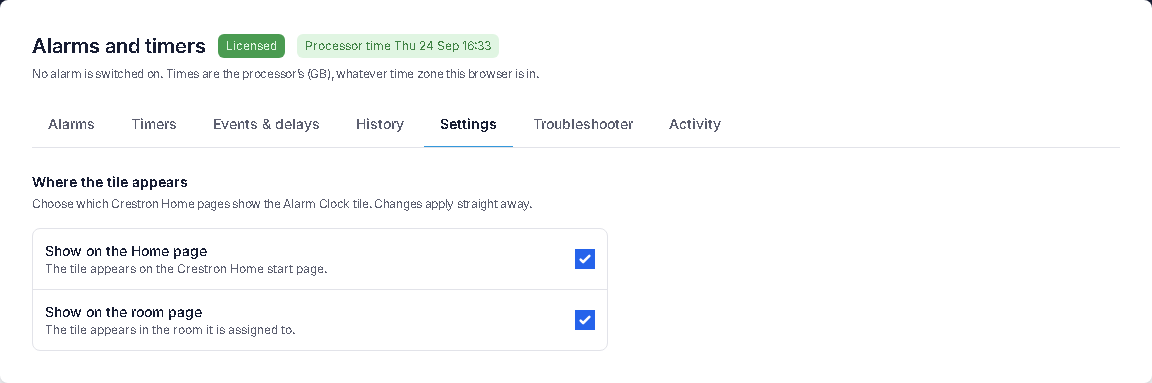
With both unticked, the tile doesn't appear anywhere in the Crestron Home app, so the panel can't be opened from there. The app shows a warning when you do this.
4. Name the events
Events are how an alarm runs your programming. Name the ones you need first, so they show up in programming with their real names.
On the panel, open the tile, then Event names, and give an event a name such as "Morning lights". You can also do this in Alarms & Diagnostics → Events & delays.
5. Use an event in programming
In Crestron Home programming, use the event as a trigger. For example, a sequence triggered by Alarm Clock V2 → Morning lights that brings the landing lights to 60%.
6. Set an alarm
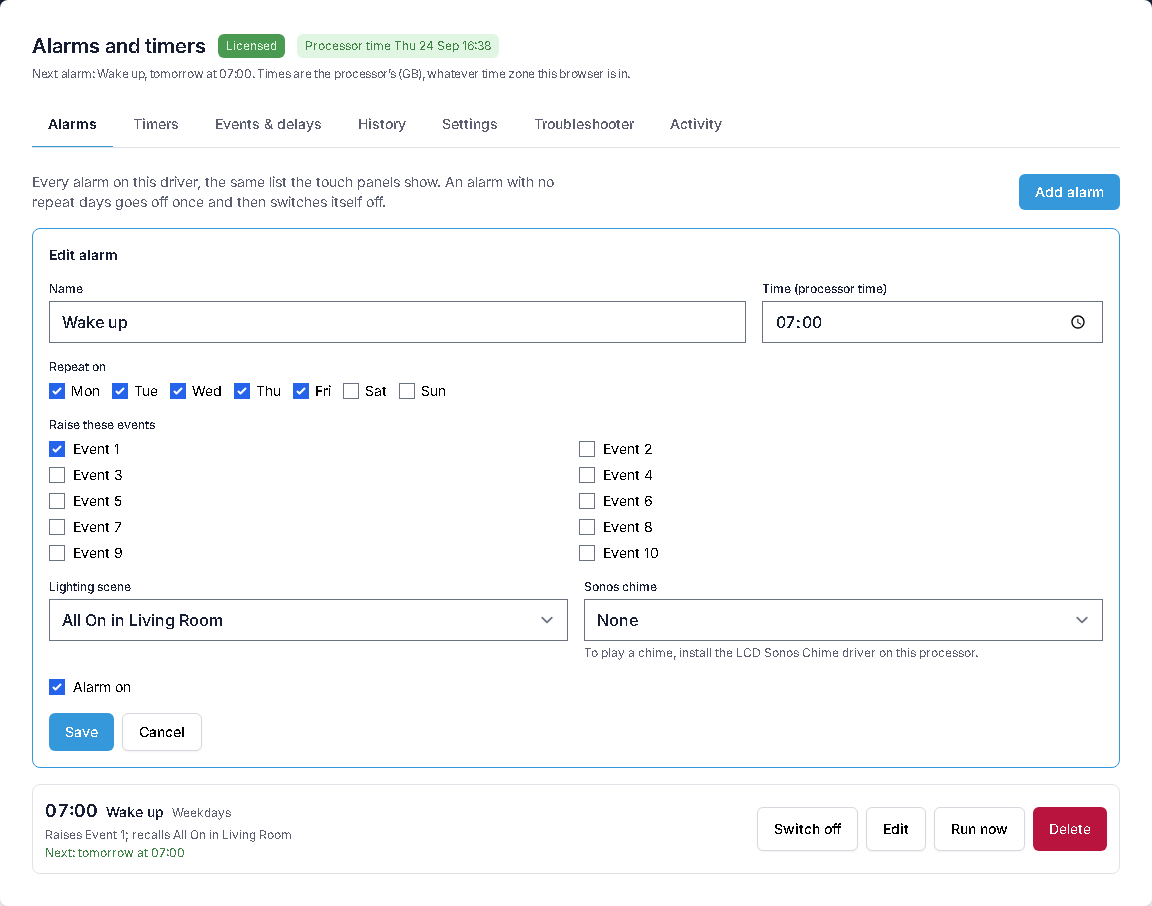
On the panel, open the tile and press Add alarm. A new alarm starts at 07:00, switched off. Every panel screen is described in Using the Alarm Clock.
- Set the time with the hour and minute buttons.
- Under Repeat, tick the days. With no days ticked, the alarm goes off once and then switches itself off.
- Under When it goes off, tick Morning lights, and choose a lighting scene and a chime if you want them.
- Tick Alarm on. The line under it says when it will next go off.
- Press Run it now to check what the alarm does without waiting.
You can do the same in Alarms & Diagnostics → Alarms: Add alarm, or Edit on an existing one. The alarms are the same list the panels show.
7. Timers
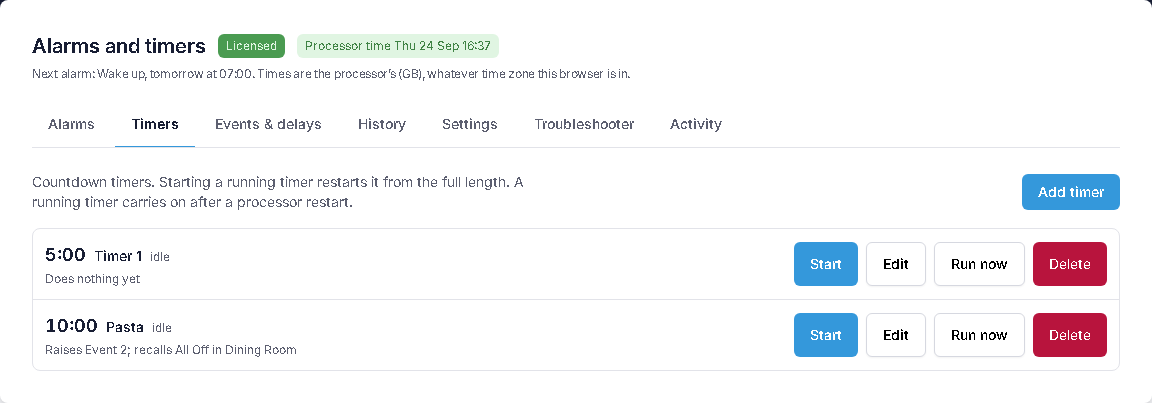
Timers work the same way: set the length, choose what happens when it runs out, then Start. Starting a running timer restarts it from the full length.
If something goes wrong during setup
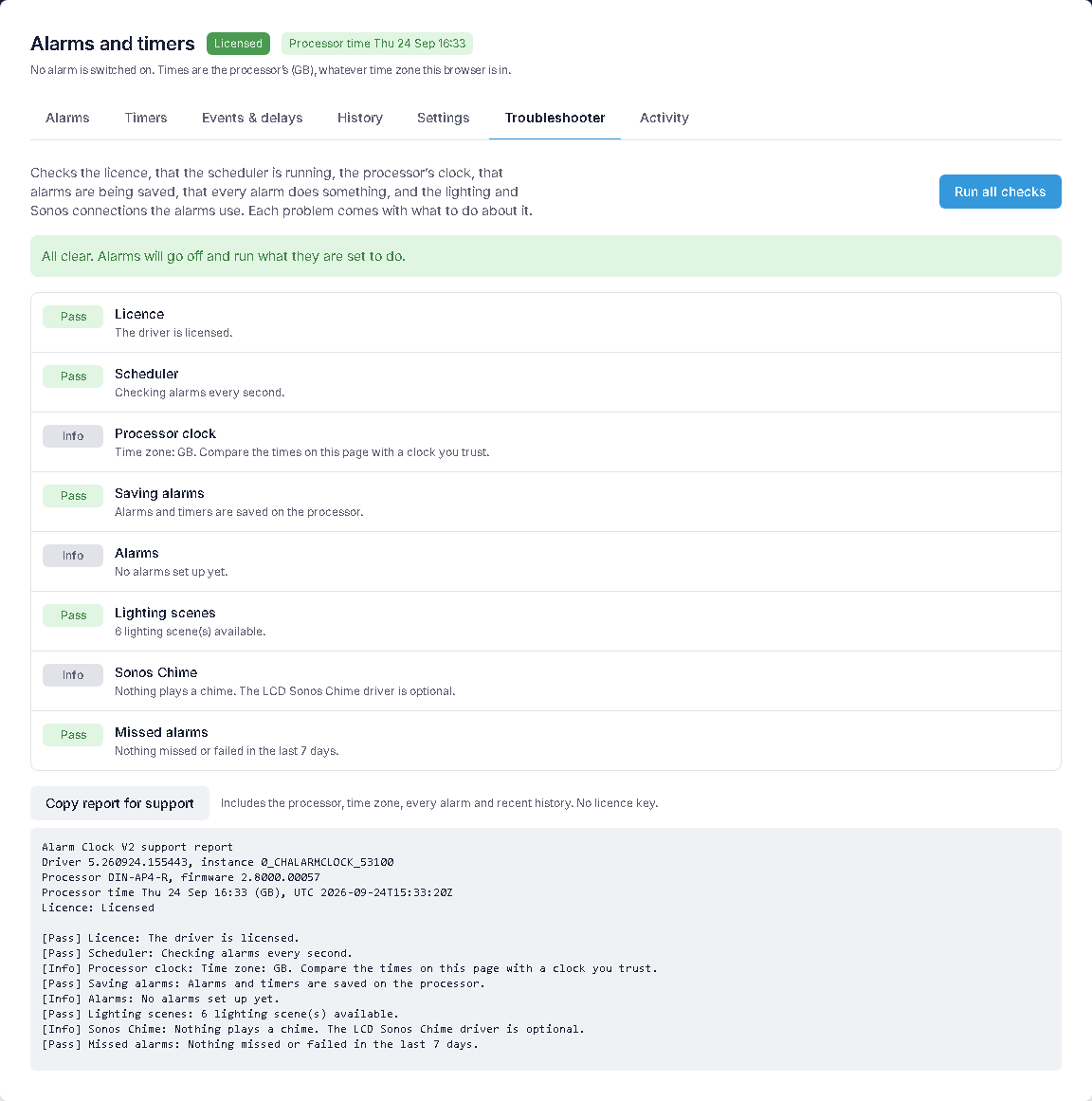
Start with Alarms & Diagnostics → Troubleshooter → Run all checks. Each check says what's wrong and what to do about it, and Copy report for support gives a report to paste into an email to LCD support.
- The lighting scene list is empty. The Web API isn't enabled, or the processor hasn't been rebooted since it was. Enable it and reboot, then run the Troubleshooter.
- No chimes to choose from. The LCD Sonos Chime driver isn't installed, or has no chimes configured.
- An alarm goes off but nothing happens. Check the licence status in the app, and that the alarm has at least one event, scene or chime ticked. The Troubleshooter flags alarms that do nothing.
- The Alarm Clock app shows an error or a blank page. Reload it. The app is deployed from the driver on every start, so restarting the driver refreshes it.